

Image bit depth controls how many distinct color values each pixel in your image can hold. An 8-bit image gives you 256 possible values per color channel, while a 16-bit image gives you 65,536. That difference sounds abstract, but it has real, visible consequences when you edit, compress, or print your photos.
Content Table
What Is Bit Depth, Exactly?
Every digital image is made up of pixels, and each pixel stores color as a combination of red, green, and blue channel values. Bit depth tells you how many binary digits (bits) are used to store each channel value. More bits means more possible values, which means more color information packed into every single pixel.
- 1-bit: 2 values per channel (pure black or pure white)
- 8-bit: 256 values per channel (2 8 ), so 16.7 million possible colors total
- 16-bit: 65,536 values per channel (2 16 ), so over 281 trillion possible colors total
When photographers and designers talk about "color depth," they're usually referring to this same concept. A higher bit depth doesn't make your image sharper or larger in pixel dimensions. It just means each pixel can describe its color with far more precision.
8-Bit vs 16-Bit Image: The Real Differences
| Property | 8-Bit | 16-Bit |
|---|---|---|
| Values per channel | 256 | 65,536 |
| Total possible colors (RGB) | ~16.7 million | ~281 trillion |
| Typical file size (uncompressed) | Smaller (3 bytes/pixel) | Larger (6 bytes/pixel) |
| Editing headroom | Limited | Substantial |
| Risk of banding after edits | Higher | Much lower |
| Common formats | JPEG, PNG (8-bit), GIF, WebP | TIFF, PNG (16-bit), PSD, RAW |
| Screen display support | Universal | Limited (most monitors show 8-bit) |
The file size difference is real and worth planning for. A 24-megapixel RAW file from a modern camera saved as a 16-bit TIFF can easily hit 140 MB, while the same image exported as an 8-bit JPEG drops to 5-10 MB with compression.
When Bit Depth Actually Matters
For most web images and casual use, 8-bit is completely fine. The gap between 8-bit and 16-bit becomes meaningful in specific situations:
- Heavy post-processing: If you're pushing exposure, pulling shadows, or aggressively adjusting curves in Lightroom or Photoshop, 16-bit gives you far more data to work with before quality degrades.
- Printing at large sizes: A poster or fine-art print at A1 or larger can reveal banding in smooth gradients that looked fine on screen at 8-bit.
- Compositing and layering: Each editing operation on an 8-bit file discards a little color information. Stack enough operations and the loss adds up visibly.
- HDR photography: RAW files from cameras like the Sony A7R V or Nikon Z8 capture 12-14 bits per channel. Editing in 16-bit preserves that captured range.
- Medical and scientific imaging: Grayscale 16-bit images (or even 32-bit) are standard in radiology and microscopy because subtle tonal differences carry diagnostic meaning.
Tonal Gradation and Banding: The Visible Problem
This is where the abstract numbers become something you can actually see. Tonal gradation refers to how smoothly an image transitions between shades, like a sky going from deep blue at the top to pale near the horizon.
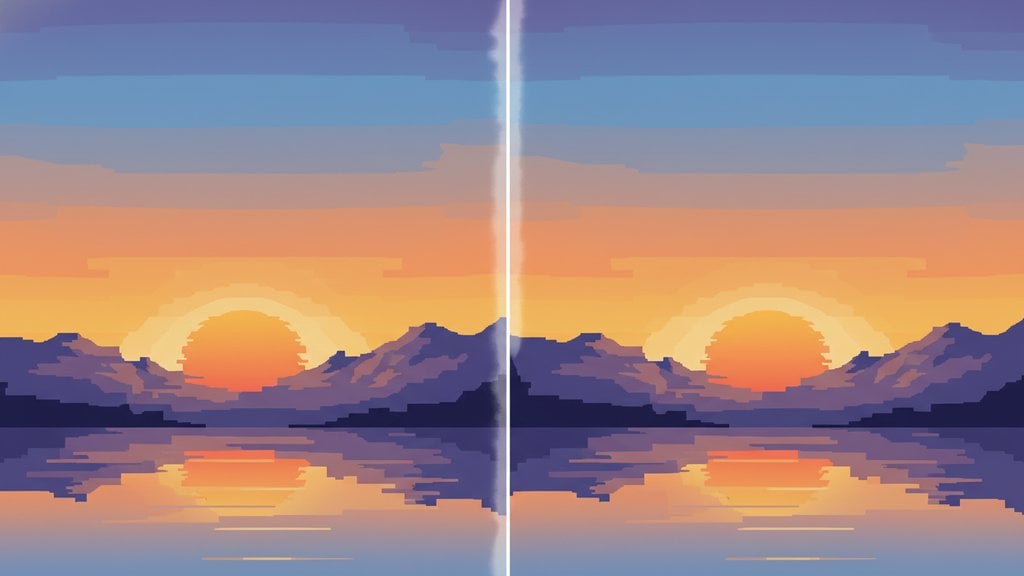
With 8-bit, you have 256 steps to cover that entire tonal range in each channel. When you stretch or compress that range during editing (say, by boosting shadows significantly), those 256 steps get redistributed and some values get skipped. The result is visible "stairstepping" between tones, called posterization or banding.
With 16-bit, you have 65,536 steps. You can stretch and compress the tonal range dramatically and still have thousands of values covering every transition. Banding becomes nearly impossible to produce under normal editing conditions.
A classic test: open an 8-bit image in Photoshop, add a Curves adjustment layer, drag the shadows up sharply, then check the histogram. You'll see gaps (combing) appear in the histogram, each gap representing a missing tonal value. Do the same with a 16-bit file and the histogram stays smooth.
File Formats and Bit Depth Support
Not every file format supports 16-bit color information. Here's how the common ones break down:
- JPEG: Always 8-bit. No exceptions. It's baked into the format specification.
- PNG: Supports both 8-bit and 16-bit. A 16-bit PNG is lossless and significantly larger than a 16-bit TIFF in some cases, but it's a valid archival format.
- TIFF: Supports 8-bit, 16-bit, and 32-bit. The standard choice for professional print and archival workflows.
- PSD (Photoshop): Supports 8-bit, 16-bit, and 32-bit natively.
- WebP: 8-bit only for standard WebP. The format doesn't support 16-bit depth.
- RAW formats (CR3, NEF, ARW, etc.): Typically capture 12-14 bits per channel, stored in a proprietary container.
- GIF: Limited to 8-bit indexed color with a palette of 256 colors total, not 256 per channel.
Understanding format limitations is closely tied to compression decisions. For a deeper look at how compression interacts with image quality, the guide on lossy vs lossless compression explains when each approach makes sense for your files.
How to Change the Bit Depth of an Image
You can change bit depth in most professional image editors. Here's how it works in the most common tools:
In Adobe Photoshop
- Open your image.
- Go to Image > Mode .
- Select 16 Bits/Channel to convert up, or 8 Bits/Channel to convert down.
- When converting down to 8-bit, Photoshop may ask about flattening layers first.
In GIMP (free)
- Open your image.
- Go to Image > Precision .
- Choose 16-bit integer or 8-bit integer from the submenu.
In Lightroom / Lightroom Classic
You set bit depth at export time, not during editing. In the Export dialog, under "File Settings," choose either 8 bits/component or 16 bits/component. Note that 16-bit export is only available for TIFF and PSD formats, not JPEG.
If you're working with images that need resizing as part of your bit depth workflow, keep in mind that resampling algorithms interact with color data. The guide on resizing images without losing quality covers what to watch for when scaling down high-bit-depth files.
Which Should You Use?
The answer depends entirely on what you're doing with the image:
- Web, social media, apps: 8-bit JPEG or PNG. Screens can't display more, and the extra file weight of 16-bit serves no purpose.
- Photography editing from RAW: Edit in 16-bit, export to 8-bit JPEG or PNG only when you're done and satisfied with the result.
- Print production: Deliver 16-bit TIFF to your print shop whenever possible, especially for large-format work with smooth gradients.
- Archiving originals: Store masters as 16-bit TIFF or lossless 16-bit PNG so future edits always start from the best possible source.
- Scientific or medical imaging: Use whatever bit depth the acquisition device supports, typically 12-bit, 16-bit, or higher.
The short version: shoot and edit in 16-bit when you have the choice, then deliver in 8-bit for anything going to a screen. You get the editing headroom during production and the small file sizes at delivery.
Convert images between formats without losing color information
When your 8-bit vs 16-bit workflow requires moving between TIFF, PNG, JPEG, and WebP, our free image converter handles the format side cleanly so your color depth decisions actually stick.
Try Our Free Image Converter →
On a standard 8-bit monitor, no. Most consumer displays, including high-end 4K screens, output 8 bits per channel. Some professional monitors support 10-bit output, but even those can't render 16-bit color directly. The difference becomes visible only after editing, when 8-bit files show banding or posterization in smooth gradients that 16-bit files handle cleanly.
No. Converting an 8-bit JPEG to a 16-bit PNG doesn't recover any lost color information. The JPEG was already compressed and already limited to 8-bit when it was saved. The resulting 16-bit PNG will be a much larger file with identical visual quality to the original JPEG. The only benefit is that future edits on the converted file won't degrade it further.
RAW files store 12-14 bits of captured data per channel with minimal processing. The in-camera JPEG applies sharpening, noise reduction, contrast curves, and color profiles, then discards everything that doesn't fit into 8-bit. RAW files look flatter out of the box but contain far more tonal information for editing. That's the entire point of shooting RAW.
Yes, noticeably. An uncompressed 16-bit image uses exactly twice the storage of an equivalent 8-bit image because each channel value takes twice as many bytes. For a 24-megapixel image, that's roughly 144 MB at 16-bit vs 72 MB at 8-bit before compression. Lossless compression (like in TIFF or PNG) reduces both, but the 16-bit file remains significantly larger.
They're related but separate concepts. Bit depth controls how many distinct values exist within a color space, while the color space defines the range (gamut) of colors those values map to. Adobe RGB covers a wider gamut than sRGB, meaning the same 256 steps in an 8-bit Adobe RGB file represent a broader range of actual colors. You can have a wide-gamut color space at 8-bit, or a narrow one at 16-bit.
32-bit (floating point) images are used in HDR compositing, VFX, and 3D rendering pipelines where pixel values can go beyond the 0-1 range entirely. For example, a highlight can be stored as 3.5 (three and a half times white) and tone-mapped later. Software like Photoshop and Nuke support 32-bit. For photography and print, 16-bit integer is more than sufficient and far more compatible with standard tools.