

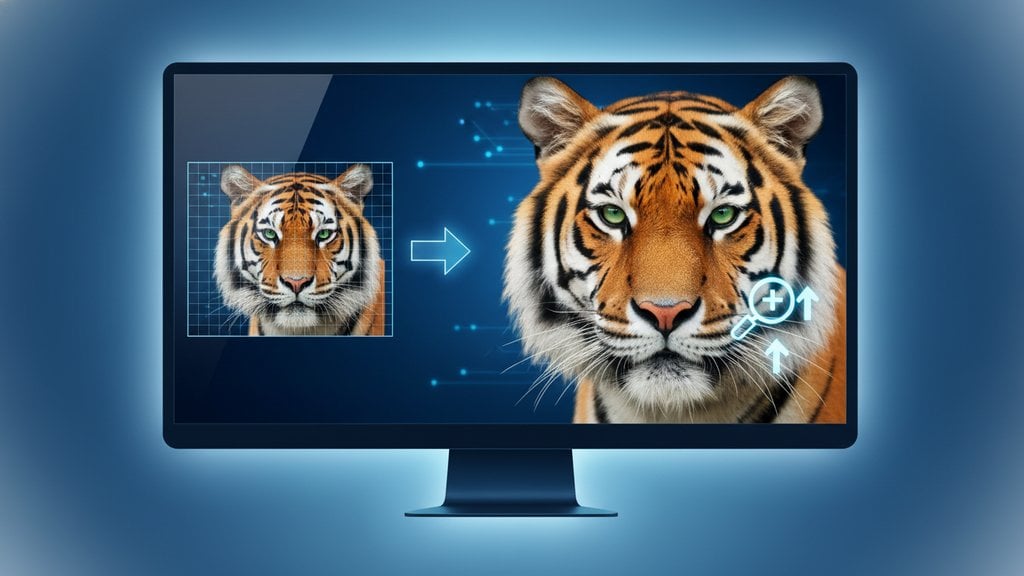
Resizing images without losing quality comes down to understanding how pixels work and choosing the right method for your goal. Whether you're scaling down a photo for the web or upsizing a logo for print, the technique you use determines whether the result looks crisp or blurry. This guide covers everything you need to know to resize images without losing quality, from format choices to the math behind resampling.
Content Table
- Why Image Quality Degrades When You Resize
- How to Scale Down Without Losing Quality
- How to Scale Up Without Losing Quality
- Choosing the Right Format for Resized Images
- Resizing vs. Compression: What Is the Difference?
- Resampling Methods Explained
- Resize Settings by Use Case
- Common Mistakes That Destroy Image Quality
Why Image Quality Degrades When You Resize
Every raster image (JPEG, PNG, WebP, etc.) is made up of a fixed grid of pixels. When you resize that grid, software has to either invent new pixels (upscaling) or throw some away (downscaling). Both operations introduce errors, and how visible those errors are depends on the algorithm used and how aggressively you resize.
There are two categories of images to think about:
- Raster images (photos, screenshots, most web graphics): quality is tied to pixel count. Stretch them too far and they become blurry or blocky.
- Vector images (SVG, AI, EPS): defined by math, not pixels. They scale to any size with zero quality loss. If you have access to a vector source file, always use it.
How to Scale Down Without Losing Quality
Downscaling is the easier direction. You're removing pixels, and modern algorithms are very good at doing this cleanly. Here's how to get the sharpest result:
- Resize proportionally. Always lock the aspect ratio. Changing width and height independently stretches the image and distorts subjects.
- Use Lanczos or Bicubic resampling when your software lets you choose. Both preserve edge sharpness better than simpler methods like bilinear or nearest-neighbor.
- Apply a light sharpening pass after resizing. Downsampling softens edges slightly. A small unsharp mask (radius 0.5, amount 80-100% in Photoshop terms) restores perceived crispness.
- Export at the right resolution for the destination. Web images need 72-96 PPI. Print needs 300 PPI minimum. Exporting a 300 PPI image for web just makes the file larger without any visual benefit on screen.
- Save to a non-destructive format first. Keep a copy as PNG or TIFF before exporting to JPEG. JPEG re-encodes every time you save, and each save adds compression artifacts.
How to Scale Up Without Losing Quality
Upscaling is the hard direction. You're asking software to invent detail that was never captured. Traditional interpolation (Bicubic, Bilinear) just blurs the image. The good news is that AI-based upscaling has changed the game significantly.
Traditional upscaling
Going 10-20% larger with Bicubic interpolation is usually acceptable. Beyond that, softness becomes obvious. This is fine for minor print size adjustments but not for doubling or tripling dimensions.
AI upscaling (super-resolution)
Tools using neural networks, such as those built on super-resolution models , analyze the image and synthesize realistic detail rather than just stretching pixels. Results are dramatically better than traditional methods, especially for faces, text, and fine textures. Some popular approaches include ESRGAN and Real-ESRGAN, which are open-source models widely used in both desktop apps and online tools.
If you're dealing with a blurry or low-resolution photo that needs to look sharp, the guide on fixing low-resolution photos before printing covers the practical steps in detail.
Choosing the Right Format for Resized Images
The format you save to after resizing has a huge impact on perceived quality. Here's a quick breakdown:
| Format | Best For | Quality Loss? | Typical File Size |
|---|---|---|---|
| PNG | Logos, screenshots, graphics with text | None (lossless) | Large |
| JPEG | Photos for web and email | Yes (lossy, adjustable) | Small to medium |
| WebP | Web images (photos and graphics) | Optional (lossy or lossless) | 25-35% smaller than JPEG at same quality |
| AVIF | Modern web, high-quality thumbnails | Optional (lossy or lossless) | Smallest of all common formats |
| SVG | Icons, logos, illustrations | None (vector) | Very small (for simple shapes) |
For a deeper look at when to use each format, the ultimate guide to image formats walks through every major option with real use-case comparisons.
Resizing vs. Compression: What Is the Difference?
These two terms often get confused, but they do different things:
- Resizing changes the pixel dimensions of an image (e.g., 4000x3000 → 800x600). The resulting file will naturally be smaller because there are fewer pixels to store.
- Compression reduces file size without necessarily changing pixel dimensions. It does this by discarding redundant data or approximating color values.
You can resize without compressing (save a resized image as lossless PNG). You can also compress without resizing (reduce a 4000x3000 JPEG's file size while keeping it at 4000x3000). For most web use cases, you want to do both: resize to the display dimensions and then compress to reduce bytes.
Understanding the difference between lossy and lossless approaches matters a lot here. The article on lossy vs. lossless compression explains the trade-offs in plain terms.
Resampling Methods Explained
When you resize a raster image, the software uses a resampling algorithm to decide what color value to assign each new pixel. The algorithm matters. Here are the main ones you'll encounter:
- Nearest-neighbor: Fastest, worst quality for photos. Copies the closest pixel value. Results in a blocky, pixelated look. Only good for pixel art where you want that effect intentionally.
- Bilinear: Averages the four nearest pixels. Smoother than nearest-neighbor but still fairly soft. Fine for quick previews.
- Bicubic: Samples 16 surrounding pixels and applies a curve-based weighting. Much sharper than bilinear. The standard for most photo editing software. Adobe Photoshop offers "Bicubic Sharper" for downscaling and "Bicubic Smoother" for upscaling.
- Lanczos: Uses a sinc function to sample a wider neighborhood. Generally the sharpest option for downscaling. Common in tools like GIMP and ImageMagick.
- AI / super-resolution: Uses a trained neural network. Best for upscaling. Produces detail that interpolation-based methods cannot.
Resize Settings by Use Case
Here are concrete targets for the most common photo resizing scenarios:
| Use Case | Recommended Dimensions | Format | Notes |
|---|---|---|---|
| Website hero image | 1920x1080 px max | WebP or JPEG | Use responsive images with srcset for multiple breakpoints |
| Blog post inline image | 800-1200 px wide | WebP or JPEG | Match your content column width exactly |
| Instagram post | 1080x1080 px (square) or 1080x1350 px (portrait) | JPEG | Instagram recompresses on upload; start at 100% quality |
| Email newsletter image | 600 px wide max | JPEG or PNG | Keep total file size under 200 KB for fast loading |
| Print (standard photo) | 300 PPI at print size | TIFF or PNG | A 4x6 inch print at 300 PPI needs 1200x1800 px |
| Profile picture / avatar | 400x400 px minimum | PNG or JPEG | PNG preserves sharp edges on logos better than JPEG |
For platform-specific social media dimensions, the guide on adjusting images for social media has current specs for every major platform.
Common Mistakes That Destroy Image Quality
- Resizing from a previously compressed JPEG. JPEG artifacts get amplified when you resize and re-save. Always work from the original file, not a web-exported copy.
- Saving JPEG at low quality settings. JPEG quality below 70-75% introduces visible blocking artifacts, especially in smooth gradients and sky backgrounds. Quality 80-85% is the sweet spot for most web use.
- Ignoring aspect ratio. Stretching an image to non-proportional dimensions distorts faces and objects in ways that are immediately obvious.
- Upscaling a small image and then printing it. A 500x500 px image printed at 8x8 inches is only 62 PPI. It will look blurry. Either source a higher-resolution original or use AI upscaling first.
- Converting PNG to JPEG for graphics with text. JPEG compression creates ringing artifacts around sharp edges and text. Use PNG or WebP (lossless) for any image that contains text or hard-edged shapes.
- Not checking actual display size on the target device. A 2000 px wide image displayed at 800 px wastes bandwidth. Match the resize output to the actual rendered size.
For web performance, resizing images correctly is closely tied to how fast your pages load. The article on lazy loading images explains a complementary technique that reduces initial page load time without touching image quality at all.
Resize images without losing quality, right in your browser
Need to resize images without losing quality right now? Our free online image resizer lets you set exact pixel dimensions, lock your aspect ratio, and download a clean result in seconds, no software to install.
Try the Free Image Resizer →
Downscaling (making an image smaller) rarely causes noticeable quality loss when done with a good resampling algorithm like Bicubic or Lanczos. Upscaling (making it larger) always introduces some softness or artifacts because you're asking the software to invent pixel data that doesn't exist. Vector images (SVG) are the exception and scale in either direction without any quality loss.
For web photos, WebP gives you the best balance of quality and file size, roughly 25-35% smaller than JPEG at the same visual quality. For graphics, logos, or anything with text, use PNG (lossless) to avoid compression artifacts around edges. For maximum compatibility with older browsers or email clients, JPEG at 80-85% quality remains a safe default for photos.
Use Bicubic or Lanczos resampling rather than bilinear or nearest-neighbor. After resizing, apply a light unsharp mask to restore edge crispness. Most importantly, always start from the highest-resolution original you have. Resizing from an already-compressed or already-small copy amplifies existing artifacts and softness, making the final result worse than starting from the source.
Yes. Resizing changes the pixel dimensions of an image, which naturally reduces file size because there are fewer pixels. Compression reduces file size by discarding or approximating data within the existing pixel grid, without necessarily changing dimensions. For web use you typically want both: resize to match the display size, then compress to reduce bytes. Doing only one of the two often leaves room for further optimization.
No. Every time you open and re-save a JPEG, the lossy compression runs again and adds a new layer of artifacts, even if you save at 100% quality. Over multiple rounds, this causes visible banding and blurring. The solution is to keep your master file in a lossless format (PNG or TIFF) and only export to JPEG as the final step, from the lossless master, not from a previous JPEG export.
Standard photo printing requires 300 PPI (pixels per inch) at the intended print size. To calculate the pixel dimensions you need, multiply the print width in inches by 300 and the print height by 300. For example, a 5x7 inch print needs at least 1500x2100 pixels. Going below 200 PPI will produce a noticeably soft result on a quality printer, though some large-format prints viewed from a distance can tolerate 150 PPI.