
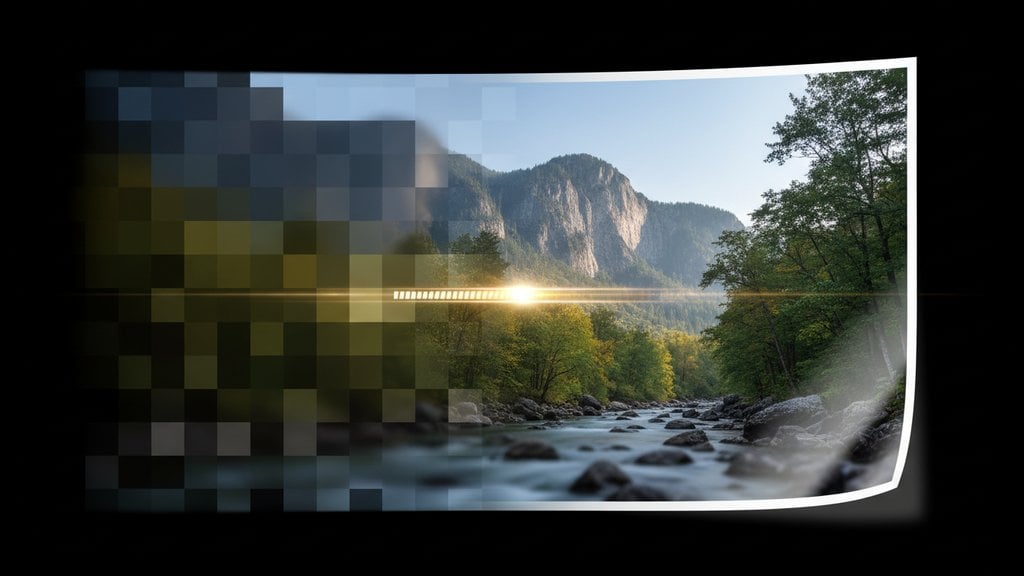
A low resolution photo prints blurry, pixelated, or muddy because it simply doesn't have enough pixels to fill the physical print size you're aiming for. The good news is that modern AI upscaling tools can recover a surprising amount of detail, and understanding a few basics about print resolution DPI will save you from wasted paper and ink every time.
Content Table
Why Resolution Matters for Printing
Digital screens and physical printers work very differently. A screen lights up individual pixels, so even a small image looks fine on a phone display. A printer, on the other hand, lays down tiny ink dots across a fixed physical area. If your image doesn't have enough pixels to cover that area at a sufficient density, the printer has to stretch each pixel, and you end up seeing blocky squares or soft, smudged edges instead of clean detail.
The standard that virtually every professional print shop uses is 300 DPI (dots per inch). Some home printers and large-format prints can get away with 150-200 DPI, but 300 is the safe target for anything up to poster size that someone will view up close.
Understanding Pixels to Inches and DPI
The relationship between pixels and print size is straightforward once you see the math. To find out what print size a photo supports at 300 DPI, divide its pixel dimensions by 300.
- A 3000 x 2400 px image prints cleanly at 10 x 8 inches (3000 ÷ 300 = 10)
- A 1500 x 1200 px image only covers 5 x 4 inches at 300 DPI
- A 900 x 600 px image - common in web graphics - tops out at 3 x 2 inches before quality degrades
This pixels-to-inches calculation is the fastest way to diagnose whether you have a resolution problem before you ever hit print. The DPI standard is well-documented and widely accepted across the printing industry, so it's a reliable benchmark to work from.
How to Check If Your Photo Is Low Resolution
Before you try to fix anything, confirm the actual pixel count of your image.
- Windows: Right-click the file, choose "Properties", then the "Details" tab. Look for "Image width" and "Image height" in pixels.
- Mac: Open the file in Preview, go to Tools > Show Inspector (Command + I). The dimensions show in pixels under "Image DPI".
- Photoshop: Image > Image Size. Make sure "Resample" is unchecked, then set resolution to 300. The width and height fields will show the maximum print size without adding new pixels.
- Free online check: Upload to any image info tool - most will display pixel dimensions instantly.
If your photo is smaller than the target print size multiplied by 300, you have a low resolution photo that needs work before it goes to the printer.
How to Fix a Low Resolution Photo Before Printing
There are three main approaches, and which one you choose depends on how much resolution you're missing and what tools you have available.
Option 1: AI-Powered Upscaling (Best Results)
AI upscaling uses machine learning models trained on millions of images to intelligently fill in missing pixel detail. This is a massive improvement over the old "bicubic" interpolation that Photoshop used to default to, which just blurred and smudged edges as it stretched pixels. Modern AI tools like Topaz Gigapixel AI or browser-based AI enhancers can double or quadruple an image's pixel dimensions while preserving (and sometimes actually recovering) edge sharpness and texture.
For most people, an online AI image enhancer is the fastest route. You upload the photo, the AI upscales it to 300 DPI images quality, and you download a print-ready file in under a minute. Our AI image enhancer handles this directly in the browser with no software to install.
Option 2: Upscaling in Photoshop or GIMP
If you prefer desktop software:
- Open your image in Photoshop and go to Image > Image Size.
- Check the "Resample" box and select "Preserve Details 2.0" (Photoshop CC 2018+) or "Bicubic Smoother" on older versions.
- Set Resolution to 300 and enter your target print dimensions.
- Click OK, then apply Unsharp Mask (Filter > Sharpen > Unsharp Mask) to recover some crispness.
In GIMP, the equivalent is Image > Scale Image, choosing "Cubic" or "NoHalo" interpolation. GIMP is free and handles moderate upscaling well, though it won't match AI tools for heavily under-resolved images.
Option 3: Resize Strategically (When Upscaling Isn't Enough)
Sometimes a photo is simply too small for the print size you want, and even AI upscaling can't fully compensate. In that case, the honest fix is to print smaller. A 1200 x 900 px photo will look sharp at 4 x 3 inches at 300 DPI - it just won't work as an 8 x 10. Forcing it to that size will always show quality loss. For a deeper look at this trade-off, the guide on resizing images without losing quality covers the technique in detail.
Sharpening After Upscaling
Upscaling - even with AI - can introduce a slight softness. A targeted sharpening pass after upscaling makes a noticeable difference in print output. Here's what works well:
- Unsharp Mask (Photoshop): Amount 80-120%, Radius 0.5-1.0 px, Threshold 3-4 levels. This is a subtle, professional-grade sharpen.
- High Pass Sharpening: Duplicate the layer, apply Filter > Other > High Pass at 1-3 px radius, set the layer blend mode to "Overlay". Non-destructive and very controlled.
- Smart Sharpen (Photoshop): Better than Unsharp Mask for most photos. Use Amount 100-150%, Radius 0.5 px, Remove "Lens Blur".
If you're working online rather than in Photoshop, there are solid browser-based options. The article on how to fix blurry photos online walks through the process step by step, including sharpening workflows that don't require any software download.
One thing to avoid: over-sharpening. If you can see a bright white halo around edges in the preview, pull back the amount. Halos look worse in print than soft edges do.
Quick Reference: Resolution by Print Size
Use this table to quickly check whether your photo has enough pixels for a given print size at 300 DPI.
| Print Size | Minimum Pixels (300 DPI) | Acceptable at 150 DPI |
|---|---|---|
| 4 x 6 inches | 1200 x 1800 px | 600 x 900 px |
| 5 x 7 inches | 1500 x 2100 px | 750 x 1050 px |
| 8 x 10 inches | 2400 x 3000 px | 1200 x 1500 px |
| 11 x 14 inches | 3300 x 4200 px | 1650 x 2100 px |
| 16 x 20 inches | 4800 x 6000 px | 2400 x 3000 px |
| 24 x 36 inches (poster) | 7200 x 10800 px | 3600 x 5400 px |
For large-format prints like posters and banners that are viewed from a distance of 3+ feet, 150 DPI is often perfectly acceptable. The Adobe guide on image resolution explains the viewing-distance principle clearly if you want to go deeper on that trade-off.
Once your photo hits the right pixel count and has been sharpened, also check the colors look right for print. Screens use RGB color, while most printers use CMYK, which has a narrower color range. Bright blues and vivid greens in particular can shift noticeably. A quick color review using the basics from color correction basics before sending to print can prevent surprises.

Fix your low resolution photo for printing - in seconds
Our AI image enhancer upscales your low resolution photo to print-ready quality right in the browser - no Photoshop, no downloads. Upload, enhance, and get a sharp 300 DPI-ready file instantly.
Try the AI Image Enhancer →
The most effective method is AI upscaling, which uses machine learning to add realistic pixel detail rather than just blurring the image larger. Upload your photo to an AI image enhancer, let it increase the pixel dimensions to meet the 300 DPI requirement for your target print size, then apply a light sharpening pass before printing. For moderate resolution gaps, Photoshop's "Preserve Details 2.0" resampling also works well.
The easiest way is to export the photo as a JPEG with a quality setting between 70-85%, which removes imperceptible data while keeping the image looking sharp. You can also resize the pixel dimensions down if the image is larger than needed. Online image compressors handle both approaches without requiring desktop software, and most can reduce file size by 50-80% with no visible quality loss.
PPI (pixels per inch) refers to the pixel density of a digital image file, while DPI (dots per inch) technically refers to the ink dots a physical printer lays down. In practice, most designers and print shops use both terms interchangeably when discussing print resolution. When a print lab says "send us a 300 DPI file," they mean an image with 300 pixels per inch at the intended print dimensions.
Usually not at large sizes without AI upscaling. Screenshots and social media images are typically 72-96 PPI and often only 1080 x 1080 px or smaller, which limits clean printing to around 3-4 inches at 300 DPI. AI upscaling can push these to 8 x 10 inches with acceptable results, but very small originals (under 500 px wide) will still show quality loss at large print sizes regardless of the method used.
Only if the editor also resamples (adds new pixels) at the same time. Simply changing the DPI number in the file metadata - without resampling - does not create new pixel data. It just tells the printer to space the existing pixels differently, which means the same number of pixels are now stretched across a larger area. The result is the same blurry or pixelated print. You need actual pixel count to increase for print quality to improve.