

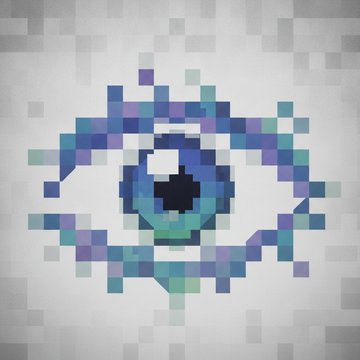
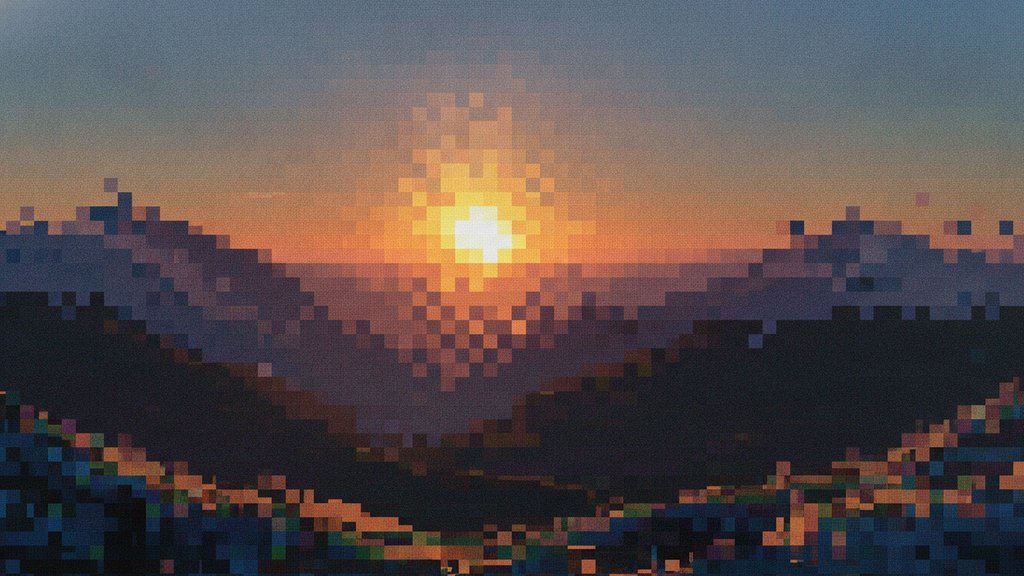
JPEG compression creates visible blocks and artifacts because it throws away image data in tiny 8x8 pixel squares, and when you compress too hard, the encoder can't store enough detail to keep those squares looking smooth. The result is blocky patches, blurry edges, and strange color halos, especially around sharp lines and high-contrast areas. This is the trade-off baked into JPEG: it's a "lossy" format that discards information you probably won't notice, until the quality setting drops low enough that you definitely will.
Content Table
What JPEG artifacts actually are
Artifacts are visible errors that appear in an image after compression. They aren't part of the original photo. They're side effects of the math JPEG uses to shrink the file. The three you'll notice most:
- Blocking: The image looks like it's made of small square tiles, each a slightly different flat color.
- Ringing: Ghostly ripples or halos next to sharp edges, like the border of black text on white.
- Color bleeding: Colors smear past their real boundaries, common on saturated reds and blues.
These get worse every time you re-save a JPEG, because each save runs the lossy compression again on already-damaged data. That's called generational loss, and it's why a JPEG that's been edited and re-exported a dozen times looks mushy.
How JPEG encoding creates the 8x8 blocks
To understand the blocks, you need to know what happens inside the encoder. JPEG doesn't look at your whole image at once. It chops it into a grid of 8x8 pixel blocks and processes each one separately. Here's the simplified pipeline:
- Color conversion: The image is switched from RGB to a brightness-plus-color model (YCbCr), because your eyes care more about brightness than exact color.
- Chroma subsampling: Color detail gets reduced, often storing color at half resolution. Your eyes barely notice, and it saves space.
- The DCT: Each 8x8 block runs through a Discrete Cosine Transform, which turns the 64 pixels into 64 frequency values describing how the block changes from smooth to detailed.
- Quantization: This is where data is thrown away. The encoder divides those frequency values by a quantization table and rounds off the small ones (the fine detail). Lower quality means more aggressive rounding.
- Encoding: The remaining values are packed with lossless compression to shrink the final file.
Because each block is quantized on its own, neighboring blocks can end up with slightly mismatched brightness. When you back up and look at the whole image, those mismatches line up into a visible grid. That's the blockiness. It's a direct result of JPEG treating every 8x8 block as an island.
The common types of compression artifacts
| Artifact | What it looks like | Main cause |
|---|---|---|
| Blocking | Visible 8x8 squares in smooth areas like skies | Heavy quantization per block |
| Ringing (mosquito noise) | Fuzzy ripples around sharp edges and text | Lost high-frequency detail near edges |
| Color bleeding | Colors smearing outside their real lines | Chroma subsampling reducing color resolution |
| Banding | Stripes in gradients instead of smooth fades | Too few tonal steps after rounding |
Ringing is sometimes called "mosquito noise" because in video it shimmers around moving edges like a swarm of bugs. It's the same root cause: JPEG can't cleanly represent a sudden jump from one color to another using its frequency-based math, so it approximates and leaves ripples.
Where artifacts show up worst
Not every image suffers equally. JPEG was designed for photographs with soft, natural gradients, and it handles those well. It struggles with:
- Sharp text and line art: Black-on-white text gets fuzzy halos. This is why screenshots with text look terrible as JPEG and much better as PNG.
- Flat colors and logos: Solid color regions develop faint blocks and speckles that shouldn't be there.
- Hard edges: The boundary between two very different colors triggers ringing.
- Subtle gradients: A clear blue sky can turn into visible bands or blocky patches.
If your image is mostly text, screenshots, or graphics with flat color, a lossless format is a better fit. The difference between throwing away data and keeping all of it is covered in our guide on lossy vs lossless compression. For text-heavy graphics, converting a JPEG to PNG avoids these artifacts entirely since PNG doesn't discard data.
It's also worth separating artifacts from real image noise. Noise comes from the camera sensor before compression ever happens. Artifacts are added by the encoder afterward. Compressing a noisy photo makes things worse, because the encoder wastes bits trying to preserve random grain and then blocks up everywhere else.
Why low quality creates artifacts
The 0 to 100 quality number in an export dialog scales the quantization table. A lower number means bigger divisors, so more frequency values round down to zero and more detail vanishes from every 8x8 block. Artifacts are the visible shape of that missing detail, which is why they appear in a fairly predictable order as the number drops:
- High quality: Only the finest detail is rounded away, so artifacts stay under the threshold you can spot at normal viewing size.
- Middling quality: Ringing shows up around text and hard edges first, because those depend on the high-frequency values the encoder discards first.
- Low quality: Whole blocks flatten to a single tone, so the 8x8 grid becomes visible in skies and other smooth areas, and gradients break into bands.
- Very low quality: Color bleeding joins in as chroma detail is crushed, and blocking, ringing and banding stack up together.
Which number to actually export at is a separate question, since it depends on how you weigh file size against visible quality. Our guide on lossy vs lossless compression covers choosing a quality level in detail.
One key point: raising the quality on an already-compressed JPEG does not restore lost detail. The data is gone. You can only prevent future loss, not undo past loss.
How to avoid and reduce artifacts
You can't eliminate JPEG artifacts completely, but you can keep them out of sight:
- Start from the highest-quality source. Edit from the original RAW or PNG, and export to JPEG only once at the end.
- Compress once, deliberately. Run the file through our image compressor and look at the preview before you accept a setting, instead of letting a low default decide for you.
- Avoid repeated re-saving. Every JPEG save compounds the loss. Keep a lossless master copy and re-export from it.
- Match the format to the content. Photos to JPEG, but text and logos to PNG.
- Consider a modern format. Converting a JPEG to WebP often gives smaller files with fewer visible artifacts at the same perceived quality.
WebP and newer formats use larger, smarter blocks and better prediction, so they avoid the rigid 8x8 grid problem that makes classic JPEG blocking so obvious. That's why many sites now serve WebP for photos while keeping JPEG as a fallback.
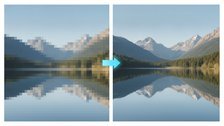
Cut down JPEG compression artifacts with a smarter format
Blocky 8x8 patches and ringing come from JPEG's aging encoding. Converting to WebP keeps files small while showing fewer visible compression artifacts at the same quality.
Convert JPEG to WebP →
Not fully. The discarded data is gone for good. Some AI-based tools can smooth or reconstruct blocks and ringing to make them less noticeable, but they're guessing at the missing detail rather than recovering the original. The best fix is preventing artifacts by exporting at high quality from a clean source.
Each save runs lossy compression again, this time on data that's already been damaged. The quantization rounds off more detail, and errors accumulate. This is generational loss. Keep a lossless master file such as PNG or the original RAW, and export a fresh JPEG whenever you need one.
Text has sharp, high-contrast edges, and JPEG's frequency-based math can't represent those cleanly. The result is ringing, the fuzzy halos around letters. For screenshots, documents, or anything with crisp text, PNG keeps the edges sharp because it doesn't throw away detail.
There is no fixed cutoff, because it depends on the image and on the encoder's quantization tables. Ringing around text and hard edges appears first, then blocking in smooth areas such as skies, then color bleeding. Flat graphics and gradients give artifacts away much earlier than busy, detailed photographs, so zoom to 100 percent and inspect edges and sky areas in your real output rather than trusting the number.
Baseline JPEG processes images in fixed 8x8 pixel blocks because that size balanced compression efficiency with the limited computing power available when the standard was created in the early 1990s. Each block is compressed independently, so mismatches between neighboring blocks line up into the visible grid you see.