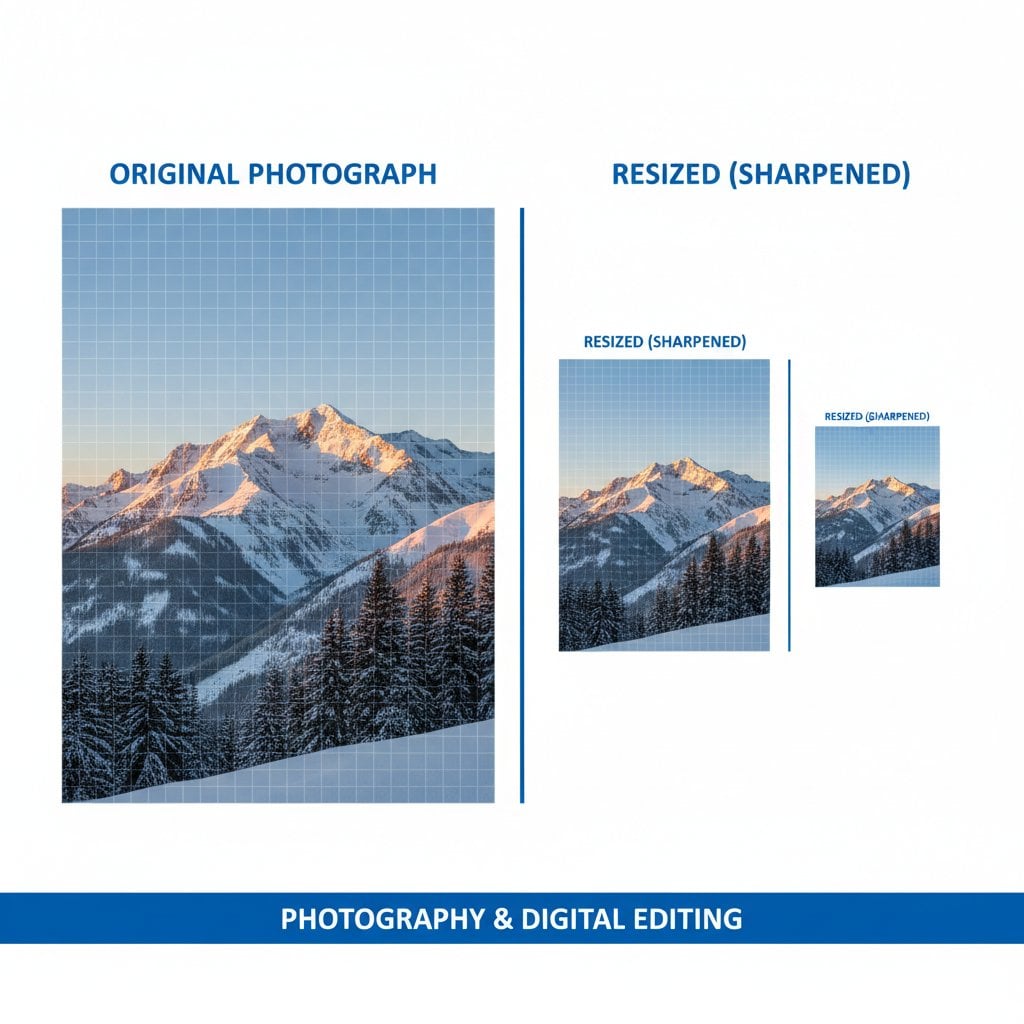
आपको बिना quality खोए images को resize करना है, लेकिन नतीजे अक्सर धुंधले, pixelated या फीके दिखते हैं। हर designer, marketer और content creator को यह परेशानी होती है जब वे e-commerce sites के लिए product photos तैयार करते हैं, blog images optimize करते हैं, या social media graphics बनाते हैं। अच्छी खबर? सही techniques और tools के साथ, आप किसी भी size में sharp, crisp images maintain कर सकते हैं। यह guide आपको proven methods बताता है, professional software से लेकर efficient online tools तक, ताकि आप हर बार confidence के साथ resize कर सकें।
विषय सूची
- Image Quality की बुनियादी बातें
- Resize करने से पहले Best Practices
- तरीका 1: Professional Software Approach
- तरीका 2: Quality बनाए रखने वाले Online Tools
- तरीका 3: Quality के साथ Bulk Resizing
- Quality Control और Testing
- Common Quality Issues को ठीक करना
- विभिन्न Use Cases के लिए Advanced Tips
- निष्कर्ष और Quick Reference Checklist
- अक्सर पूछे जाने वाले प्रश्न
Image Quality की बुनियादी बातें
Tools और techniques में जाने से पहले, यह समझना जरूरी है कि image quality को क्या प्रभावित करता है। तीन मुख्य concepts हैं जो आपकी resized images कैसी दिखेंगी यह निर्धारित करते हैं: pixels, resolution और compression।
मुख्य बातें:
- Resizing के दौरान image quality maintain करने के लिए हमेशा highest resolution source file का उपयोग करें।
- Resize करने से पहले सही file format चुनें: transparency के साथ graphics के लिए PNG, photographs के लिए JPEG।
- Downscaling, upscaling से बेहतर quality preserve करता है। अपने dimensions की सावधानी से planning करें।
- Best results के लिए bicubic या AI-powered resampling algorithms का उपयोग करें।
Pixels digital images की building blocks हैं। जब आप resize करते हैं, तो आप या तो pixels add कर रहे हैं (upscaling) या उन्हें remove कर रहे हैं (downscaling)। Upscaling inherently ज्यादा challenging है क्योंकि software को "guess" करना पड़ता है कि नए pixels कैसे दिखने चाहिए।
Resolution pixel density को refer करता है, जो आमतौर पर PPI (pixels per inch) में measure किया जाता है। Higher resolution का मतलब more detail है, लेकिन larger file sizes भी।
Compression data discard करके file size reduce करता है। Lossy compression (JPEG) permanently information remove करता है, जबकि lossless compression (PNG) सारा original data preserve करता है।
| कारक | Quality पर प्रभाव | Best Practice |
|---|---|---|
| Source Resolution | Higher source = बेहतर results | सबसे बड़ी available file से शुरू करें |
| Resize Direction | Downscaling, upscaling से safer | हर step में max 50% तक reduce करें |
| Compression Level | Higher compression = more artifacts | JPEG quality को 80-90% रखें |
| Resampling Method | Algorithm edge sharpness को affect करता है | Reduction के लिए Bicubic Sharper use करें |
Resize करने से पहले Best Practices
Proper preparation से अधिकतर quality issues prevent हो जाते हैं। किसी भी photo resizing project शुरू करने से पहले इस checklist को follow करें:
File Format Selection
- JPEG: Photographs और complex images with gradients के लिए best। 80-92% quality settings use करें।
- PNG: Graphics, logos और transparency requiring images के लिए ideal। Lossless लेकिन larger files।
- WebP: Modern format जो quality preservation के साथ excellent compression offer करता है। Detailed comparisons के लिए हमारा image formats की guide देखें।
Pre-Resize Quality Assessment Checklist
- Source image resolution verify करें (आपके target size से कम से कम 2x का aim करें)
- Existing compression artifacts check करें
- Original aspect ratio note करें
- Original file का backup create करें
- अपने target dimensions और use case को document करें
Pro Tip: हमेशा अपनी original, unedited image files को अलग folder में रखें। एक बार lossy compression या resize apply करने के बाद, आप original quality recover नहीं कर सकते।
तरीका 1: Professional Software Approach
Professional image editing software image optimization और quality preservation पर सबसे ज्यादा control offer करता है। यहाँ दो popular applications में effectively resize करने का तरीका है।
Step-by-Step: Photoshop में Resizing
- अपनी image open करें और Image > Image Size पर जाएं (या Windows पर Alt+Ctrl+I, Mac पर Option+Cmd+I press करें)।
- "Resample" enable करें और AI-enhanced upscaling के लिए dropdown से "Preserve Details 2.0" select करें, या downscaling के लिए "Bicubic Sharper"।
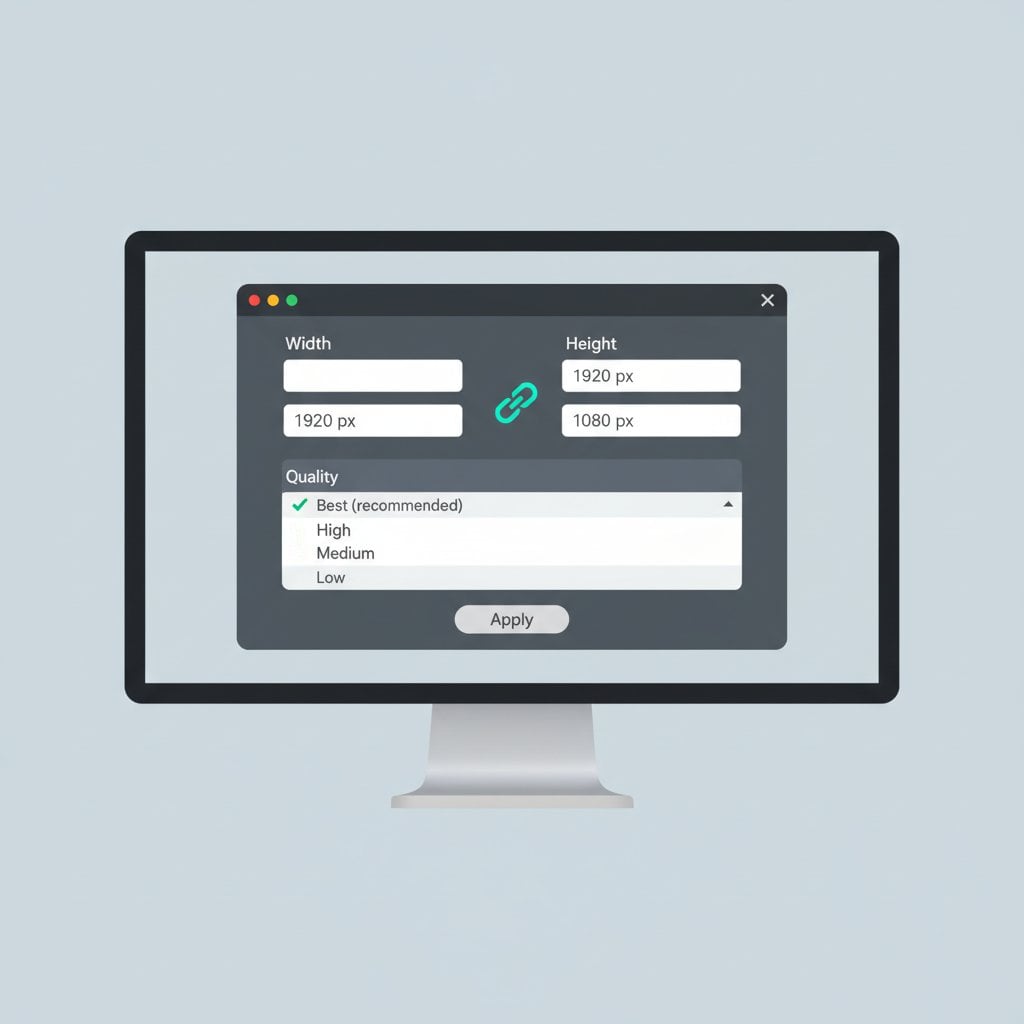
- Aspect ratio lock करें Width और Height के बीच chain link icon पर click करके।
- अपने target dimensions enter करें pixels, inches या centimeters में।
- "Reduce Noise" slider adjust करें (अगर Preserve Details use कर रहे हैं) sharpness और smoothness balance करने के लिए।
- OK click करें और optimal compression control के लिए File > Export > Export As use करके save करें।
Step-by-Step: GIMP में Resizing (Free Alternative)
- अपनी image open करें और Image > Scale Image पर navigate करें।
- Chain icon click करें aspect ratio maintain करने के लिए।
- New dimensions enter करें अपनी preferred unit में।
- Interpolation method select करें: Downscaling के लिए "NoHalo" या moderate changes के लिए "LoHalo" choose करें।
- Scale click करें apply करने के लिए।
- Export करें File > Export As via, अपना format और quality level select करके।
तरीका 2: Quality बनाए रखने वाले Online Tools
हर किसी को professional software की जरूरत नहीं है। Modern online tools excellent quality maintain करते हुए resize image online कर सकते हैं। हमारा image resizer आपके browser में locally files process करता है, privacy ensure करते हुए professional results deliver करता है।
Quality-Preserving Online Tools में क्या देखना चाहिए
- Multiple resampling algorithm options
- Adjustable output quality settings
- Format conversion capabilities
- Aspect ratio lock functionality
- Download से पहले preview
Must-have capabilities की comprehensive overview के लिए, हर online image editor में होने चाहिए 7 essential features पर हमारा article देखें।
Concrete Example: E-commerce Product Photo
मान लीजिए आपके पास 4000x3000 pixel का product photo है जिसे 800x600 thumbnail बनना है। हमारे online image resizer का उपयोग करके:
- Original high-resolution image upload करें
- Width को 800 pixels set करें (height auto-calculate होकर 600 हो जाएगी)
- "High Quality" output setting select करें
- Optimal file size और clarity के लिए 85% quality पर JPEG choose करें
- Optimized result download करें
Result: 45KB की file जो quickly load होती है sharp product details maintain करते हुए, आपकी online store के लिए perfect।
तरीका 3: Quality के साथ Bulk Resizing
सैकड़ों images को individually process करना valuable time waste करता है। Batch processing आपको large volumes में efficiently maintain image quality करने देता है।
Batch Processing Best Practices
- Similar images group करें: Optimal settings के लिए photos को graphics से separately process करें।
- Presets create करें: अपनी quality settings को reusable profiles के रूप में save करें।
- पहले test करें: हजारों process करने से पहले 5-10 images का small batch run करें।
- Output monitor करें: Large batches से random samples spot-check करें।
Photoshop में, straightforward batch resizing के लिए Image > Image Processor use करें। GIMP के लिए, BIMP plugin bulk operations effectively handle करता है।
Quality Control और Testing
Resizing के बाद, verify करें कि आपके results quality standards meet करते हैं। यहाँ अपने image compression और resizing outcomes assess करने का तरीका है:
A/B Comparison Method
- Original और resized images को side by side open करें
- दोनों पर 100% view में zoom करें
- Artifacts के लिए edges, text और high-contrast areas check करें
- Color accuracy compare करें, especially gradients में
Monitor करने वाली Quality Metrics
- Sharpness: Edges halos के बिना crisp रहने चाहिए
- Color fidelity: Hue में कोई banding या shifts नहीं
- Artifact presence: JPEG blocking या mosquito noise check करें
- Detail preservation: Fine textures visible रहने चाहिए
Common Quality Issues को ठीक करना
Blurry Results ठीक करना
Blurriness आमतौर पर poor resampling या over-compression से होती है। Solutions:
- Subtle sharpening apply करें (Unsharp Mask at 50%, 1px radius)
- Sharper resampling algorithm use करें
- एक large jump के बजाय smaller increments में resize करें
Pixelation Eliminate करना
Pixelation तब होता है जब reasonable limits से ज्यादा upscaling करते हैं। ठीक करने के लिए:
- अगर possible हो तो higher resolution original source करें
- Modest enlargements के लिए AI-powered upscaling tools use करें
- Accept करें कि extreme upscaling (200% से ज्यादा) limitations show करेगा
Color Problems Correct करना
Color shifts अक्सर color space mismatches से result होते हैं। Ensure करें कि आप:
- Web images के लिए sRGB में work करें
- Saving के समय color profiles embed करें
- Lossy formats के साथ repeated save cycles avoid करें
विभिन्न Use Cases के लिए Advanced Tips
Different platforms की specific requirements होती हैं। Common scenarios के लिए इस reference table का उपयोग करें:
| Use Case | Recommended Size | Format | Quality Setting |
|---|---|---|---|
| Website Hero Image | 1920x1080px | WebP/JPEG | 80-85% |
| Blog Post Image | 1200x630px | JPEG/WebP | 85% |
| Print (300 DPI) | Print size के अनुसार varies | TIFF/PNG | 100% (lossless) |
| Instagram Post | 1080x1080px | JPEG | 90% |
| Email Newsletter | 600x400px | JPEG | 75-80% |
Platform-specific dimensions के लिए, social media के लिए images adjust करने की हमारी guide check करें।
निष्कर्ष और Quick Reference Checklist
बिना quality खोए images resize करना preparation, proper tool selection और careful quality control पर depend करता है। Highest resolution source available के साथ start करें, appropriate resampling methods choose करें, और publishing से पहले हमेशा results verify करें। चाहे आप professional software use करें या हमारा online image resizer, इन principles को follow करने से आपकी images किसी भी size में sharp दिखेंगी।
Quick Reference Checklist:
- ☐ Editing से पहले original files का backup लें
- ☐ अपने use case के लिए correct file format choose करें
- ☐ Distortion prevent करने के लिए aspect ratio lock करें
- ☐ Appropriate resampling algorithm select करें
- ☐ JPEG output के लिए quality को 80-90% set करें
- ☐ 100% zoom पर original के साथ results compare करें
- ☐ Sharpness के लिए edges और text check करें
- ☐ File size platform requirements meet करता है verify करें
इसे practice में लाने के लिए ready हैं? बिना quality खोए images resize करें — free, instant, और कोई sign-up required नहीं।
अक्सर पूछे जाने वाले प्रश्न
Moderate enlargements (200% तक) Photoshop के Preserve Details 2.0 जैसे AI-powered upscaling tools use करके possible हैं। हालांकि, extreme enlargements हमेशा कुछ quality loss show करेंगे क्योंकि software को ऐसा pixel data generate करना पड़ता है जो original में exist नहीं करता।
PNG और TIFF lossless formats हैं जो resizing के दौरान सारा image data preserve करते हैं। Photographs के लिए जहां file size matter करता है, 85-92% quality पर JPEG use करें। WebP web use के लिए quality और compression का excellent balance offer करता है।
Blurry results आमतौर पर basic resampling algorithms use करने या output file को over-compress करने से होते हैं। Downscaling के लिए bicubic sharper पर switch करें, अपनी JPEG quality setting को 85% या higher increase करें, और resizing के बाद subtle sharpening apply करें।
Photoshop में batch processing features (Image Processor), BIMP plugin के साथ GIMP, या multiple uploads support करने वाले online tools use करें। अपनी quality settings के साथ presets create करें और large volumes process करने से पहले small batch पर test करें।
Web images उनके embedded resolution के regardless 72-96 PPI पर display होती हैं। Instead pixel dimensions पर focus करें: full-width images के लिए 1200-1920 pixels wide, content images के लिए 600-800 pixels। यह quality को fast loading times के साथ balance करता है।