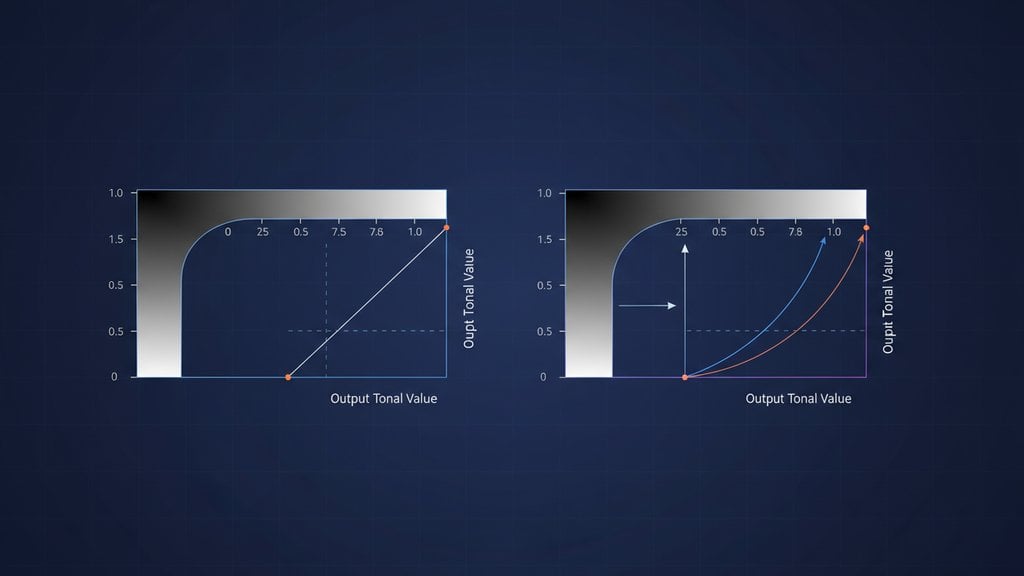
Gamma correction is a way of adjusting how brightness values in an image are encoded and displayed, so that what you see on screen actually matches what the human eye expects. Without it, images that look perfectly exposed on one screen can appear washed out, too dark, or flat on another. The concept sits at the intersection of physics, human perception, and digital imaging, and understanding it explains a lot about why photo editing tools have a "gamma" slider sitting next to the brightness control.
Content Table
Why Gamma Exists
Human vision does not perceive brightness in a straight line. We are much more sensitive to changes in dark tones than in bright ones. If you double the physical light hitting your eye, the image does not look twice as bright. Early cathode ray tube (CRT) monitors had the opposite problem: they produced light non-linearly too, but in a way that happened to roughly cancel out the quirk of human vision. That accidental match became the foundation for how digital images store brightness data today.
The sRGB color space, which is the default for most cameras, monitors, and web images, encodes pixel values with a specific gamma curve baked in. This encoding (called gamma encoding or gamma compression) packs more precision into the dark areas of an image, where the eye is most sensitive. When a display decodes those values to emit light, it applies the inverse curve (gamma expansion) to restore the correct luminance. The whole pipeline is called gamma correction.
The Gamma Value Explained
The gamma value is the exponent in the power function that describes the relationship between a stored pixel value and the light output it represents. The formula looks like this:
Output = Input ^ gamma
Where
Input and Output are both normalized to a 0.0 to 1.0 range.
- Gamma = 1.0: No change. Output equals input exactly. This is a linear relationship.
- Gamma < 1.0 (e.g., 0.45): Brightens the image, especially in the midtones. This is what cameras use to encode images for storage.
- Gamma > 1.0 (e.g., 2.2): Darkens the image. Displays apply this to decode the stored values back to correct luminance.
The standard gamma for most consumer monitors and the sRGB color space is approximately 2.2. When a camera encodes an image with a gamma of roughly 0.45 (which is 1/2.2), and a monitor decodes it with 2.2, the two operations cancel out and you see a perceptually correct image. If any step in that chain is skipped or applied twice, the image looks wrong.
Gamma vs. Brightness: What Is the Difference?
This is where a lot of confusion comes in. Brightness and gamma both affect how light or dark an image looks, but they work differently.
| Property | What It Does | Affects Highlights | Affects Midtones | Affects Shadows |
|---|---|---|---|---|
| Brightness | Adds or subtracts a fixed value from every pixel | Yes (strongly) | Yes | Yes |
| Gamma | Applies a curve that remaps values non-linearly | Minimally | Strongly | Yes |
A brightness adjustment shifts the entire tonal range up or down uniformly. Raise brightness by 50 and every pixel gets 50 added to it. This can easily blow out highlights or crush shadows. Gamma correction, by contrast, bends the curve. Lowering the gamma value (below 1.0) lifts the midtones without touching the absolute black and white points, which is why it feels more natural for exposure correction. This is also why photographers often prefer the gamma or midtone slider over a raw brightness slider when fixing underexposed shots.
For a broader look at how these adjustments fit into a full editing workflow, the color correction basics guide covers the relationship between brightness, contrast, and color balance in one place.
The Tone Curve Connection
If you have ever used the Curves tool in Photoshop or Lightroom, you have already applied gamma correction manually. A tone curve is just a visual way to define the same power function. When you drag the midpoint of the curve upward, you are effectively lowering the gamma value and brightening the midtones. When you pull it downward, you raise the effective gamma and darken the image.
The S-curve (a common editing technique where you lift the highlights slightly and deepen the shadows) is a more complex version that adjusts gamma differently across the tonal range. It increases contrast by making dark areas darker and bright areas brighter, all without clipping the absolute extremes.
When to Use Gamma Correction
Gamma correction is the right tool in several specific situations:
- Underexposed photos: A gamma value below 1.0 lifts the midtones and recovers detail in shadows without blowing out highlights the way a straight brightness boost would.
- Overexposed photos: A gamma above 1.0 pulls the midtones down and recovers washed-out areas more gracefully than reducing brightness across the board.
- Cross-device consistency: Images destined for print, web, and video often need gamma adjustments because each medium has different encoding expectations. A photo that looks right in a browser (sRGB, gamma 2.2) may look flat in a video player that expects a different gamma profile.
- HDR and linear light workflows: 3D rendering and compositing software often works in a linear color space (gamma 1.0). Images brought into these pipelines need gamma to be removed first (linearized), then reapplied at the end. Skipping this step causes color blending errors and incorrect lighting calculations.
- Scanned documents and old photos: Scans often come out flat or too dark because the scanner's gamma assumptions do not match the original medium. A quick gamma adjustment restores the original tonal balance.
Common Gamma Values and Standards
Different industries and platforms have settled on specific gamma values. Here is what you will encounter most often:
| Standard / Context | Gamma Value | Notes |
|---|---|---|
| sRGB (web, most cameras) | ~2.2 | Default for consumer devices and browsers |
| Adobe RGB | 2.2 | Wider color gamut, same gamma as sRGB |
| Apple / Mac (legacy) | 1.8 | Older Macs used 1.8; modern Macs use 2.2 |
| Rec. 709 (HDTV video) | ~2.4 | Slightly higher than sRGB for dim viewing environments |
| Linear light (3D / VFX) | 1.0 | No gamma encoding; used for mathematical accuracy in rendering |
The ITU-R BT.709 specification defines the gamma curve used in broadcast HD video, which is worth reading if you are preparing images for television or streaming platforms.
Applying Gamma Correction in Practice
Most photo editing tools expose gamma as part of their exposure or levels controls. Here is how to approach it depending on your situation:
- Check the histogram first. If the histogram is bunched to the left, the image is underexposed. If it is bunched to the right, it is overexposed. Gamma correction will move the midpoint of the histogram without shifting the endpoints.
- Adjust gamma (or midtones), not brightness. In tools that offer both, reach for gamma first. It is more surgical.
- Watch the highlights and shadows. A good gamma adjustment should recover detail without clipping. If you see pure white or pure black spreading across large areas, you have gone too far.
- Combine with contrast if needed. After lifting the midtones with gamma, the image may look slightly flat. A small contrast boost restores punch without undoing the gamma work.
If you are preparing images for social media posts and need to make quick exposure corrections without desktop software, the workflow for adjusting images for social media covers practical steps for getting consistent results across platforms.
For batch corrections on product photos or low-light shots, imgdeal.com's Image Enhancer lets you adjust brightness and contrast across up to 50 images at once using independent sliders. The brightness slider (range 0.2 to 2.0, default 1.0) mimics the effect of raising or lowering the gamma midpoint, while the contrast slider (same range) lets you compensate for any flatness introduced. Values below 1.0 darken, values above 1.0 brighten, and the default of 1.0 leaves the image unchanged.
If you are dealing with photos that look soft or degraded alongside the exposure issues, fixing the underlying resolution first often makes gamma correction more effective. The guide on fixing low-resolution photos before printing explains how to address that before applying tonal corrections.
Fix image brightness and gamma correction without desktop software
imgdeal.com's Image Enhancer lets you apply gamma correction-style brightness and contrast adjustments to up to 50 images at once, so underexposed or overexposed shots are fixed in seconds. No installs, no subscriptions.
Try the Image Enhancer Free →
No, they work differently. Brightness adds a fixed value to every pixel uniformly, which can blow out highlights or crush shadows. Gamma correction applies a non-linear curve that mainly targets the midtones, leaving the absolute black and white points mostly intact. For fixing underexposed or overexposed photos, gamma correction is generally more precise and produces more natural-looking results than a straight brightness adjustment.
A gamma of 2.2 means the display raises each normalized pixel value to the power of 2.2 when converting stored data to light output. This is the standard for sRGB, which is the default color space for most monitors, cameras, and web images. It compensates for how human vision perceives brightness non-linearly, ensuring that images look consistent across devices that follow the sRGB standard.
Historically, older Macs used a gamma of 1.8 while Windows used 2.2, which made the same image look brighter on a Mac and darker on a PC. Modern Macs have adopted the 2.2 standard, so the gap is much smaller now. However, differences in monitor calibration, color profiles, and ambient light settings still cause visible variation. Properly embedding an ICC color profile in your image files helps reduce these discrepancies.
Gamma correction changes pixel values but does not inherently degrade image quality if done carefully. However, repeatedly encoding and decoding gamma (for example, correcting an already-corrected image) can introduce rounding errors, especially in 8-bit files. Working in 16-bit when possible minimizes this. File size is not directly affected by gamma correction itself, though re-saving a JPEG after any edit does introduce compression artifacts.
Use the gamma slider when you need a quick, single-value midtone adjustment, such as globally brightening an underexposed photo. Use the Curves tool when you need more control, for example lifting shadows while keeping highlights neutral, or applying an S-curve to boost contrast. The Curves tool is essentially a visual way to define a custom gamma function across different tonal ranges simultaneously.
Yes, it matters more than most people realize. Social media platforms like Instagram and Facebook display images in sRGB with a gamma of 2.2. If you export a photo without the correct color profile embedded, the platform may re-encode it and the gamma can shift, making bright images look dull or dark images look muddy. Exporting as sRGB with the ICC profile preserved is the safest approach for consistent results across devices.